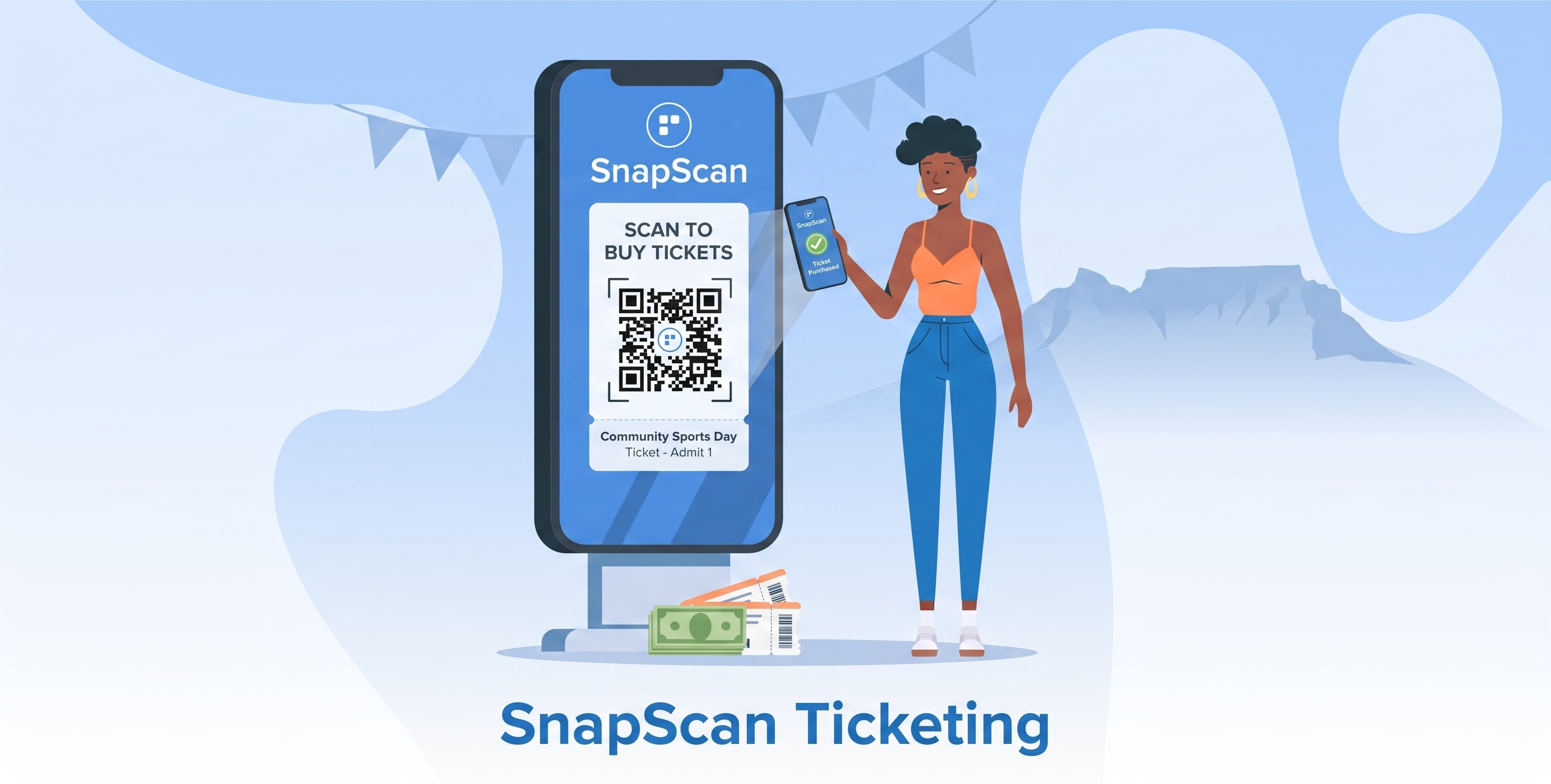
Getting the App
Do I need the SnapScan app to buy a ticket?
Yes, tickets are purchased and stored in the SnapScan app. Download it for free from the App Store or Google Play Store before trying to buy your ticket.
Is the SnapScan app free to download?
Yes, the SnapScan app is completely free to download and set up. There is no subscription or monthly fee.
Buying a Ticket
How do I find the event and buy a ticket?
There are two ways:
Via the event link: tap the link shared by the organiser; it takes you directly to the event in the app
Search in the app: Open SnapScan → tap More → Events → search for the event or organiser name
Once you have found the event, select your ticket type, complete payment, and your ticket will appear in the app instantly.
Will I receive a confirmation after buying?
Yes, once payment is successful, your ticket will appear immediately in the Events section of the app. You will also receive a payment receipt.
⚠ Note: Your payment receipt is not your ticket. Make sure you know how to find your ticket in the app before you arrive at the event.
Can I buy tickets for someone else?
Yes, you can buy tickets for friends and family. If you want to send these to them, you can send it via the SnapScan app using their email address.
Finding Your Ticket
Where do I find my ticket in the app?
Here is how to find your ticket:
Open the SnapScan app
Tap More at the bottom of the screen
Tap Events
Tap My Tickets at the top
Your active ticket will appear here; tap it to open and show at the door
Tip: Find your ticket before you arrive at the event so you are not searching for it in the queue.
I changed phones; can I still access my ticket?
Yes, download the SnapScan app on your new phone and log in with the same account details you used when you bought your ticket. Your ticket will be available under My Tickets once you are logged in.
⚠ Note: Make sure you log in before arriving at the event; do not leave it until you are at the door.
Can I take a screenshot of my ticket?
No, screenshots are not valid for entry. Your ticket must be opened live in the SnapScan app and redeemed at the door. A screenshot cannot be validated and will not grant you entry.
At the Event
How do I use my ticket to get in?
Open the SnapScan app, navigate to More > Events > Tickets, and open your active ticket. Show it to the person at the door, and they will give you the event code to redeem your ticket.
Tip: Find your ticket before you arrive at the event so you are not searching for it in the queue.
Can I get a refund if I cannot attend?
Refund policies are set by the event organiser, not by SnapScan. Contact the organiser directly if you need to discuss a refund.
Was this article helpful?
That’s Great!
Thank you for your feedback
Sorry! We couldn't be helpful
Thank you for your feedback
Feedback sent
We appreciate your effort and will try to fix the article